SpinWheel
How to Build a Mystery Box Online
Build a free online mystery box for class rewards or stream giveaways: add prizes, pick a play mode, test opens, then share a link on SpinWheelPlus.
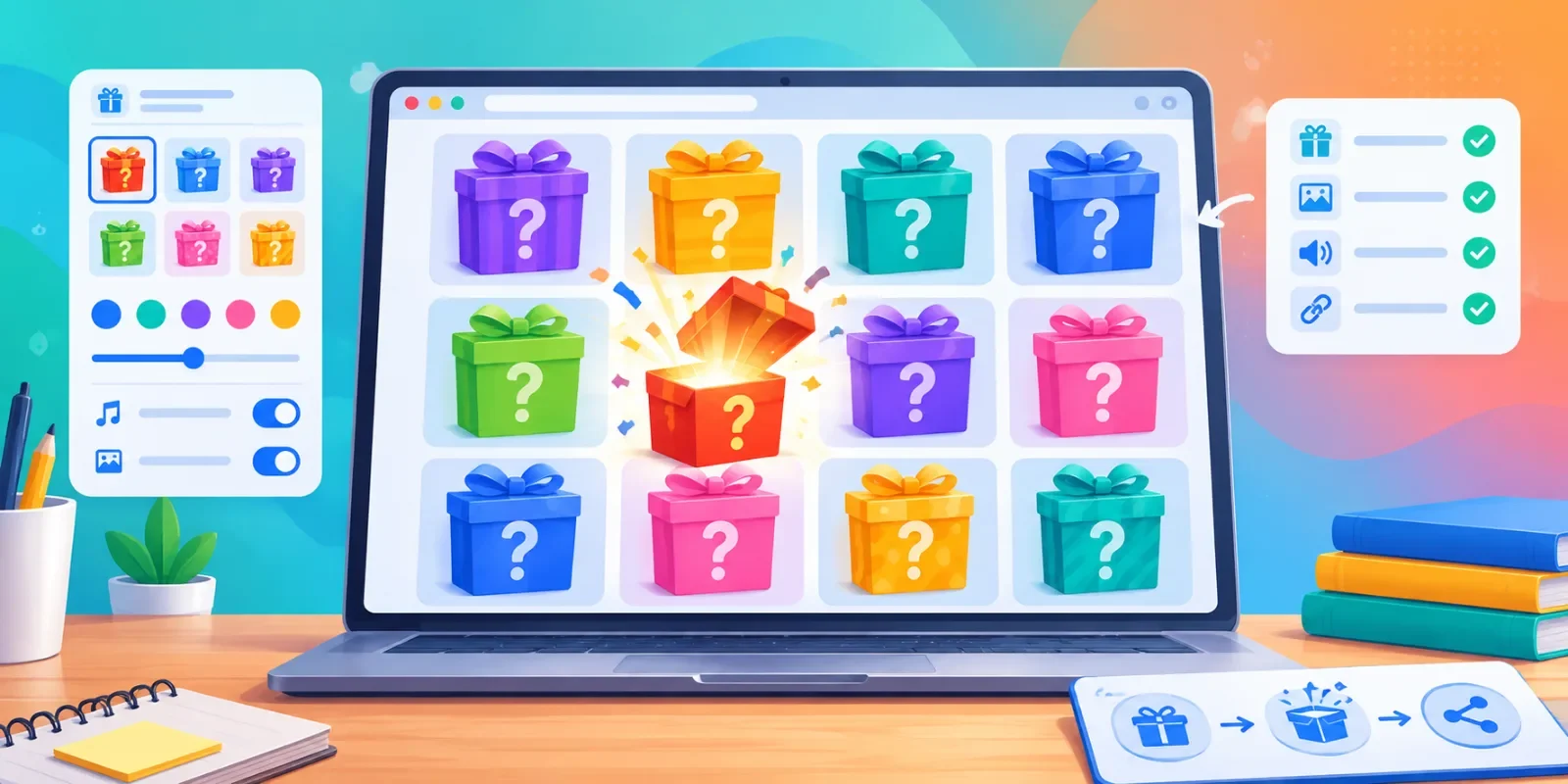
You can build a free online mystery box on SpinWheelPlus in a few minutes: add prizes in Entries, set rules in Customize, test an open on screen, then Save to cloud for a shareable link. No app install. Sign in only when you want cloud save or a public page.
This guide is for creators and teachers who need a visible prize reveal - class rewards, stream giveaways, or a booth promo - where people pick a box instead of watching one spin for the whole room. Prefer a single animated pick from a name list? Use the spin wheel step-by-step guide instead.

Festive gift-bag vibes are available as box skins in Customize → Appearance. The steps below use the live editor on SpinWheelPlus.
Why I Built SpinWheelPlus Mystery Box
I once watched a supermarket run a giveaway by dropping paper slips into a bag for customers to draw. It felt fun at first. After a few rounds of putting slips in and pulling them out, staff lost track of some tickets. A few prizes sat unclaimed, while the real stock no longer matched what was left in the bag.
That mix-up is why I built SpinWheelPlus Mystery Box. When you load gifts in Entries, the count is clear from the start. Opens and remaining prizes stay on screen - no lost slips, no quiet shortage mid-promo. The goal is simple: keep prize handouts consistent and fairer than a paper bag.
Who This Tutorial Is For
Use a mystery box when several people should each open a surprise:
Creators and streamers - chat gifts, sub rewards, on-camera opens
Teachers - reward grids students tap on a projector or tablet
Event or retail hosts - mixed souvenirs, vouchers, or samples with one pick per guest
What you need
A modern browser (desktop, tablet, or phone)
A short prize list (text labels; images optional)
Optional account - only for Save to cloud and a stable public link
Plan Prizes and Play Mode First
Set the rules before you touch the UI. That keeps the live reveal honest and easy to explain.
List prizes - one Entry row per gift. Repeat a label when you have many of the same item (for example ten stickers and one voucher).
Pick a readable grid size - about 24 boxes works in class; about 10 boxes stays clear on stream overlays.
Choose Play mode (Customize → Gameplay → Play mode):
Treasure Hunt - one closed box per entry; opening that box reveals that entry. Weights are saved but not used when drawing.
Single Box - one box on stage; each open is a weighted draw from the active prize pool (the same prize can win again).
Multi Box - several identical boxes on stage; each open is a weighted draw. Use Allow duplicate prizes to allow or block the same prize winning twice. Set Boxes on screen when you need a specific count.
Session limits - under Customize → Gameplay → Session, set Max opens per session (often 1 per guest or student). Keep Show opens left on if you want the audience to see remaining opens.
Example: A teacher loads 24 classroom rewards, uses Treasure Hunt, sets Max opens per session to 1, and projects the grid. Students take turns tapping a box everyone can see.
Create the Box in the Editor
The workspace has the box grid on the left and the Entries panel on the right - Customize, New, and Save live in that panel header.
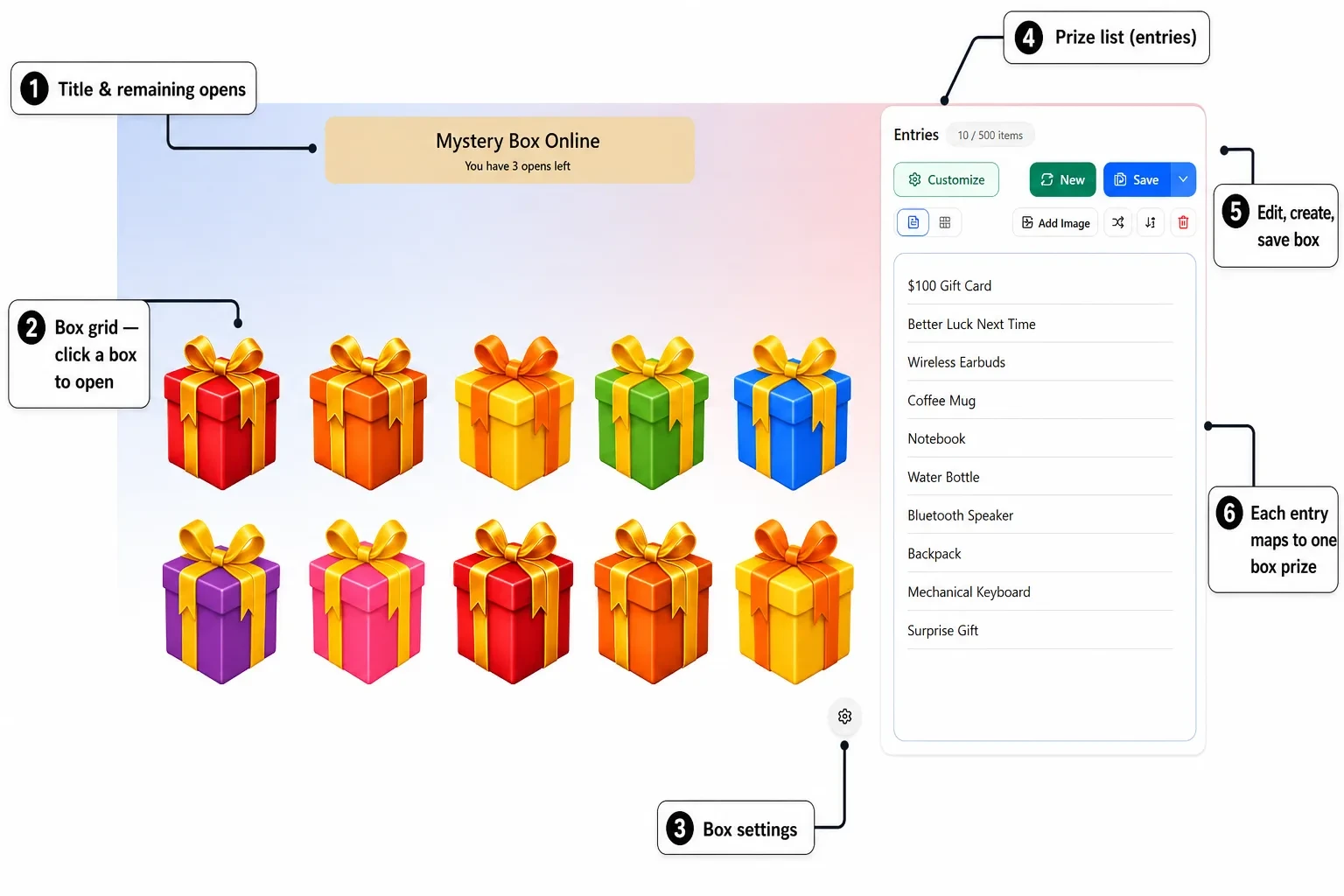
Editor overview: title and opens left on the stage, box grid to click, Entries list on the right, plus Customize / New / Save.
Step 1 - Open the mystery box editor
The grid and Entries panel load in the browser - nothing to download.
Step 2 - Add prizes in Entries
In Entries, add one prize per row (press Enter for a new line). The counter shows how many items you have loaded.
Use Text view for a fast list. Switch to Advanced view when you need per-prize options, images, counts, or weights.
Use the toolbar when helpful: Add Image,Shuffle, sort, or Clear (double-check before clearing).
Tip: Keep labels short so they stay readable in the reveal popup on a phone or projector.
Step 3 - Customize Appearance, Gameplay, and Page
Click Customize. The drawer subtitle is "Appearance, gameplay rules, and page copy" - three tabs that match how you run the reveal.
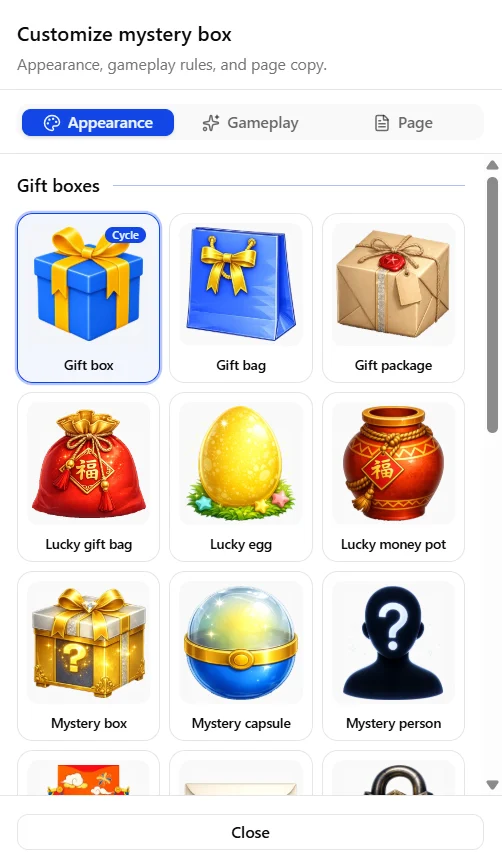
Customize → Appearance → Gift boxes: pick Gift box, Gift bag, Gift package, Lucky styles, Mystery capsule, and more.
Appearance - choose a Gift boxes skin (Gift box, Gift bag, Lucky gift bag, Mystery box, and others) so the grid matches your class, stream, or event.
Gameplay - set Play mode (Treasure Hunt, Single Box, or Multi Box), Max opens per session, and related session toggles such as show opens left.
Page - set page background and page copy for the public box page when you publish.
Optional: open and reveal sounds make the moment land better on camera. Test volume once before you go live.
Step 4 - Test one open before you share
Open one box on the same screen you will use (projector, tablet, or stream capture).
Confirm the reveal popup, sounds, and that labels stay readable from the back of the room.
Check Reveal History under the Entries panel so you know where the open log lives if someone asks what already won.
Step 5 - Save to cloud and share the link
Click Save when you are signed in. The Save mystery box dialog has Basic and Advanced tabs.
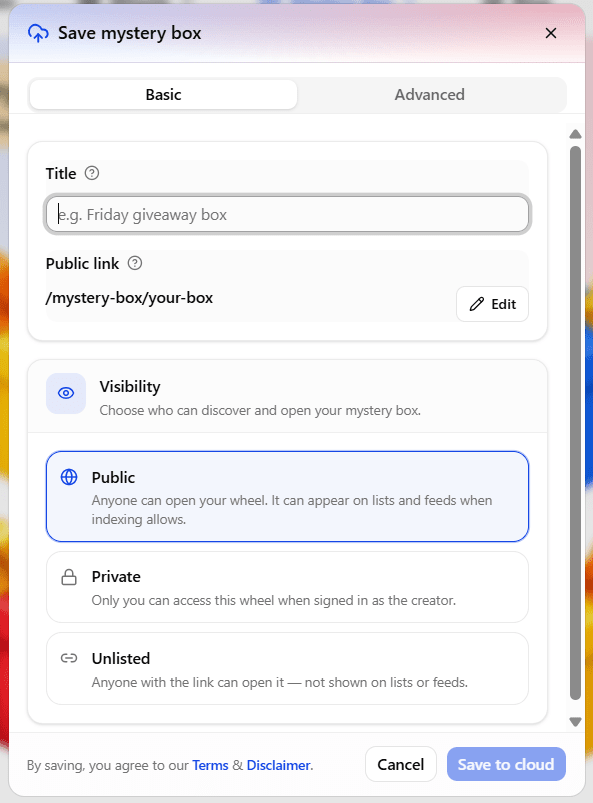
Save mystery box: Title, Public link, visibility (Public / Private / Unlisted), then Save to cloud.
Title - name the box (for example "Friday giveaway box").
Public link - edit the slug under
/mystery-box/...so the URL is easy to say out loud or put in chat.Visibility:
Public - anyone can open; it may appear on lists and feeds when indexing allows
Private - only you when signed in as the creator
Unlisted - anyone with the link; not shown on lists or feeds
Click Save to cloud (you agree to Terms and Disclaimer).
Want a layout idea before you build from scratch? Browse popular mystery boxes, then put your own prizes in Entries.
Fair Randomness and Reveal History
Prize order is shuffled for the round, and each open uses crypto.getRandomValues() in supported browsers - the same Web Crypto family used for secure browser tasks, not a fixed pattern you can guess. That is enough for classrooms, parties, and most stream giveaways when the open happens on screen.
Use Reveal History when two people disagree about who already won. For large or paid promotions, SpinWheelPlus is a visible reveal tool - not legal advice. Check platform and local giveaway rules where you live.
Mystery Box vs Spin Wheel
Pick the format that matches the moment:
Format | Best when | Start here |
|---|---|---|
Mystery box | Many guests each pick a box; mixed prize piles; suspense and choice | |
Spin wheel | One spin decides a single winner or turn order for the whole room |
Some hosts run a wheel to pick who goes first, then a box grid for the prize. Both stay free to try in the browser.
Common Mistakes (and Easy Fixes)
Too many tiny boxes - shrink the grid or split into two rounds so labels stay readable.
Forgetting Max opens per session - one eager guest can drain the board; set the limit in Customize → Gameplay → Session before you share.
Wrong Play mode - Treasure Hunt maps boxes to entries; Single Box and Multi Box use weighted draws. Match the mode to what you told your audience.
Skipping a test open - sound, zoom, and popup size fail more often than the randomizer itself.
Saving without a clear slug - edit Public link before Save to cloud so co-hosts can find the page fast.
Ready to Build Your Mystery Box?
Open the free mystery box editor, add prizes in Entries, set Appearance and Gameplay, test one reveal, then Save to cloud. For inspiration, check popular mystery boxes. Need one spin for a name list instead? Follow the spin wheel tutorial.