SpinWheel
How to Create a Spin Wheel Online
Learn how to create a custom spin wheel in your browser — for teachers and event hosts. Start on the homepage or from a template, then share fair random picks. No install.
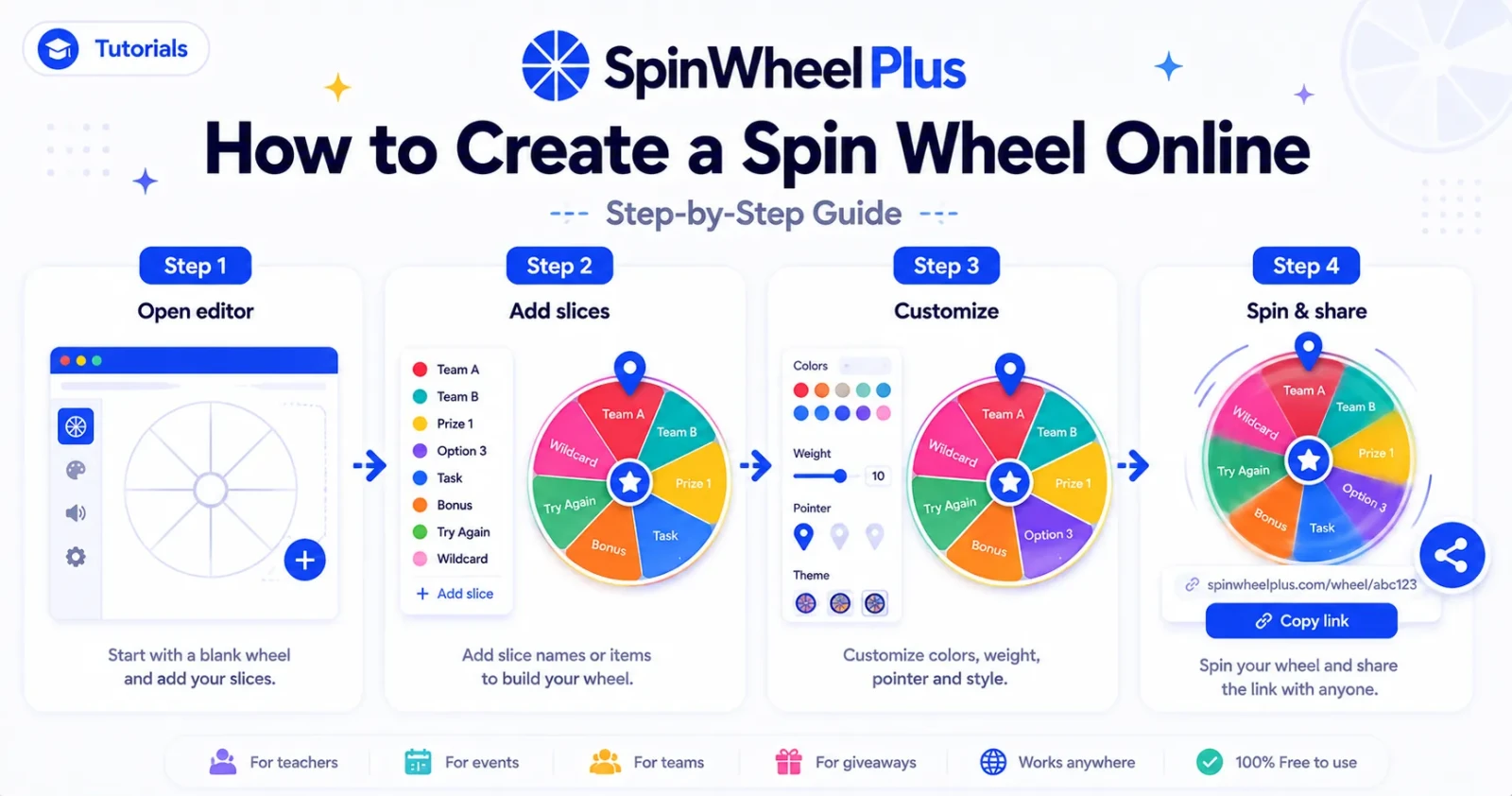
You can create a custom spin wheel online in SpinWheelPlus by adding your labels on the homepage editor, tuning the design in Customize, and spinning in your browser - no download required. Start from scratch, pick a template, or browse public wheels for ideas. This guide walks teachers and event hosts through the full flow so your next pick feels fair, looks good on a projector, and takes less than a minute to test.
Who This Tutorial Is For
This step-by-step guide is for anyone who needs a visible, unbiased random pick in front of a group:
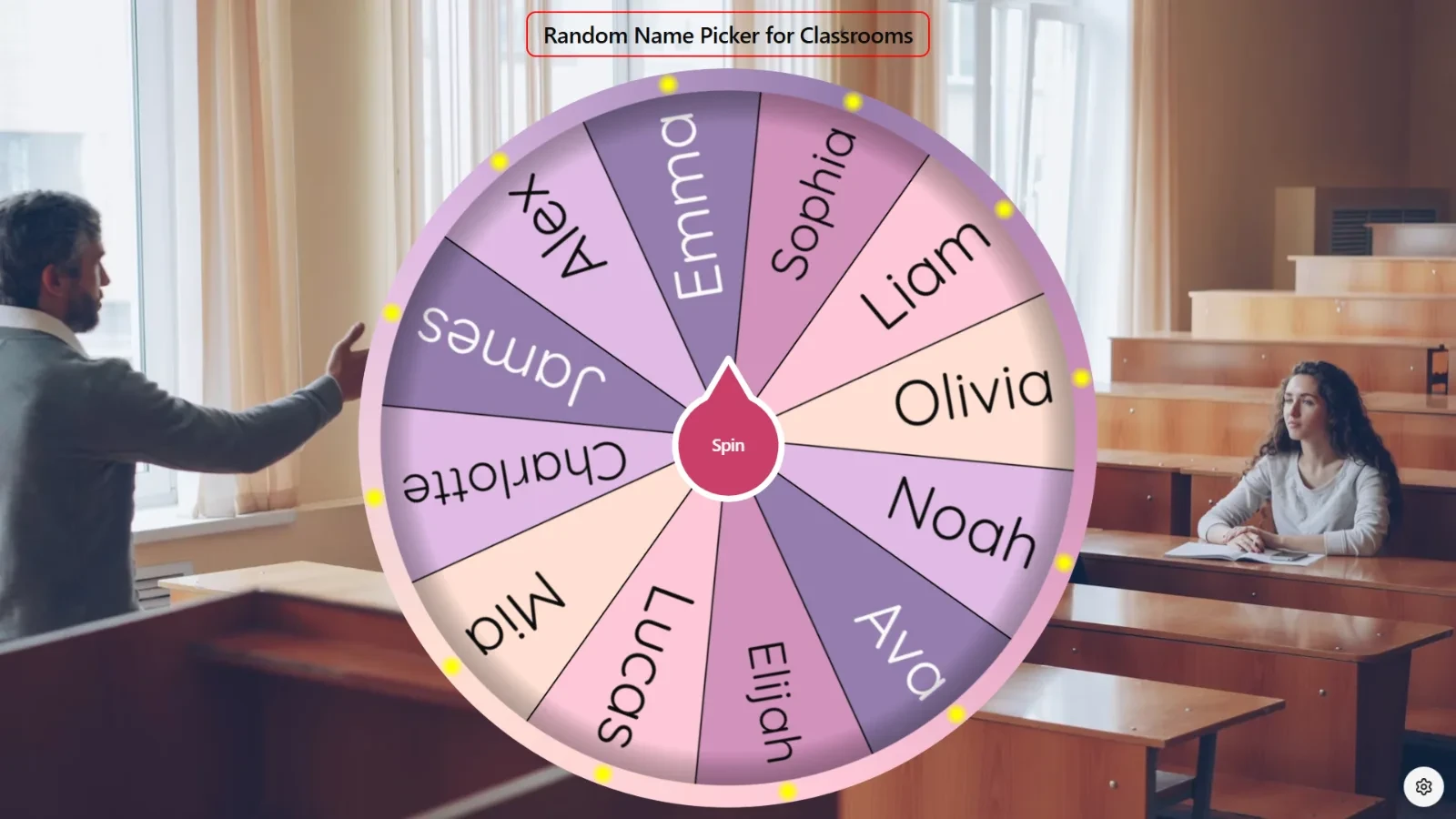
K-12 teachers - volunteer readers, presentation order, quick classroom games
Event and party hosts - icebreakers, chore wheels, silly dares
Meeting facilitators - demo order, discussion turns, breakout assignments
What you need before you start
A modern browser on a laptop, tablet, or phone
A list of names, tasks, or options
No account required to spin - sign in only when you want to save to the cloud or publish a share link
Open the free spin wheel editor and you can spin within seconds.
Prefer a walkthrough? Watch the full tutorial below, then follow the written steps if you want to pause on Entries, Customize, or Save.
Path A - Build on the Homepage Editor
Path A is best when you already know your labels and want full control - no template hunting.
Step 1 - Open the editor
Go to spinwheelplus.com.
The wheel canvas loads with default slices - spin once to see how it feels.
Step 2 - Add entries in the side panel
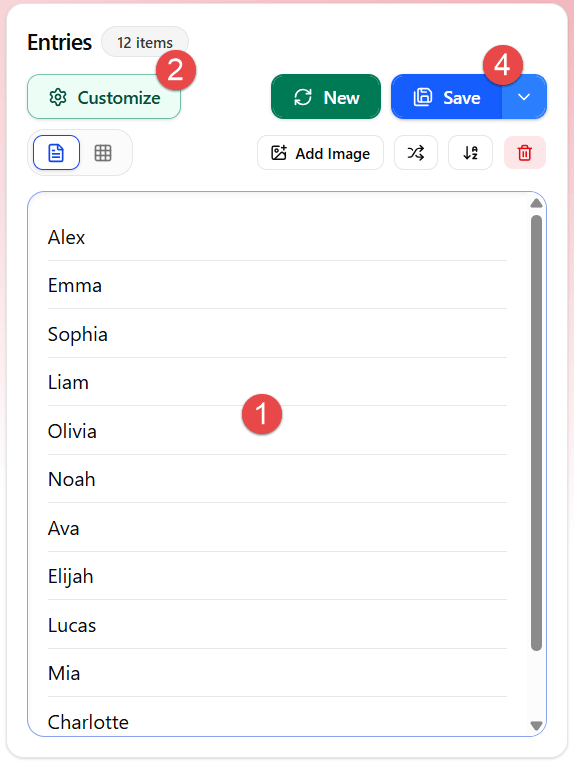
The Entries panel on the right is where you build slices. This is separate from the Customize drawer.
Each line is one slice. Press Enter to add another row.
Use New or type directly in Text view.
Switch to Advanced view when you need per-slice color, image, or weight.
Toolbar shortcuts:
Add Image - attach images to entries
Shuffle - randomize slice order
Sort A to Z / Sort Z to A
Clear - remove all entries (double-check before clicking)
Advanced view shows each slice with name, color, image, weight, and % chance. You can move entries up or down, duplicate, remove, or disable a slice without deleting it.
Open the Advanced dialog on any entry for finer control:
Popup message and Winner title overrides
Sound per entry (or inherit from the wheel)
Display on wheel: Both (text + image), Text only, Image only, or None
Chance weight with live Probability: X%
Step 3 - Customize how the wheel looks and behaves
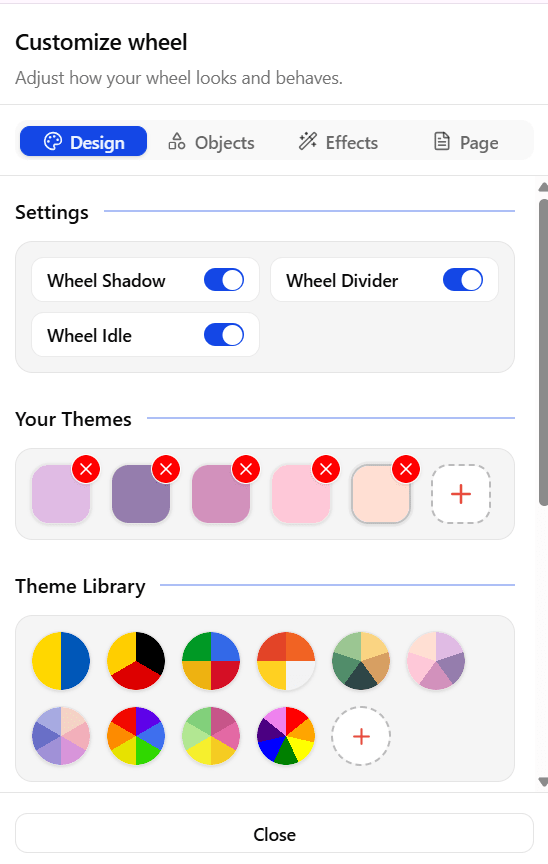
Click Customize in the panel footer to open the Customize wheel drawer. Four tabs: Design, Objects, Effects, and Info.
Design tab
Wheel Shadow, Wheel Divider, Wheel Idle - depth, slice lines, idle motion
Your Themes - slice color swatches; Add theme color / Remove theme color
Theme Library - preset palettes (Show all themes / Show featured themes)
Wheel Background - surface styles (None, Tree Bark, Arabesque, and more), custom image URL, Upload, Gallery, or Search Unsplash
Spin settings - Spin Style: Auto Stop (Default) or Manual Stop; tune Duration (auto) or Spin Strength (manual, 1-5)
Objects tab
Center - hub style (Circle, Circle + arrow, No center); center image; spin button background color
Rim - None, Color, or Image; border and dot colors, or a rim gallery image
Pointer - custom pointer image or Gallery
Effects tab
Spin Sound - pick a track and set Volume (preview with the play icon)
Winner Sound - winner track + volume
Winner Result - Highlight winning slice; Auto remove winner after 5s; Winner Effect (Confetti or None); Show result popup with your Popup message and button mode (Close & Remove, Close only, Remove only)
Info tab
Wheel header - Wheel title, short Wheel description, Head style (Plain, Frame, Panel), font size, font family, text and frame colors
Page copy - rich Page description for your public wheel page
Page Background - layouts for Desktop, Tablet, and Mobile; background image; drag-and-resize wheel placement; optional Page Effect (e.g. Snow)
Tip: Picking students in class? Use contrasting slice colors so names stay readable on a projector - light text on dark slices (or the reverse) beats pastel-on-pastel.
Tip: Running a long session with no repeats? Turn on Auto remove winner after 5s under Effects → Winner Result so the same name cannot win twice without you noticing.
Tip: Not ready to publish yet? Click the chevron next to Save → Save as JSON for a backup you can bring back with Import in the panel footer.
Step 4 - Spin for your audience
Click Spin on the wheel.
Let the animation finish - the winning slice is shown clearly.
Optional: open the gear menu on the canvas for Fullscreen, View result history, or Sound on/off.
Example: A teacher adds 28 student names, projects the wheel, and spins once for "volunteer reader." Everyone watches the spin - no one assumes the pick was manual.
Path B - Start From a Template
Path B saves time when you want a proven layout before you swap in your own text.
Open Spin wheel templates.
Pick a layout close to your use case.
Rename slice labels and adjust colors.
Spin on the template page or keep editing in the main editor.
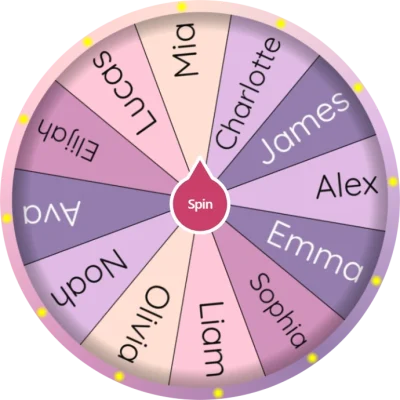
Browse published examples: Classroom & Education wheels and Party & Fun wheels. You can also open a public wheel like this classroom name-picker example to see how others label slices - then build your own on the homepage.
Which starting point fits you?
Option | Best for | Where to go |
|---|---|---|
Homepage editor | Quick custom wheels when you already have your list | |
Templates | Faster setup - rename a layout instead of building from zero | |
Public wheels | Inspiration before you make your own version |
None of these require an account to try. Sign in when you want a saved link you can reuse next week.
Common Mistakes (and Easy Fixes)
Most messy or "unfair" spins come from setup, not the randomizer. Watch for these:
Duplicate names - Two "Alex" entries mean Alex has double the chance to win. Run Sort A to Z and scan for repeats before you go live.
Too many tiny slices - Past roughly 20-25 labels, text gets hard to read on a phone or projector. For huge lists, try the Random Name Picker or split into two wheels.
Forgetting to remove winners - Enable Auto remove winner after 5s in Customize → Effects, or remove the slice manually after each spin.
Saving without a title or slug - Set Title and edit the Public link slug before Save to cloud, or you end up with a link nobody remembers.
A quick test spin with fake names before class or stream saves more awkward moments than any setting tweak.
Save, Share, and Guest vs Account
Guest mode - spin and edit locally
No account is required to build entries, customize the wheel, and spin. Guest mode fits a single class period or party. Your work stays in the browser until you save to the cloud.
Save button - publish to the cloud
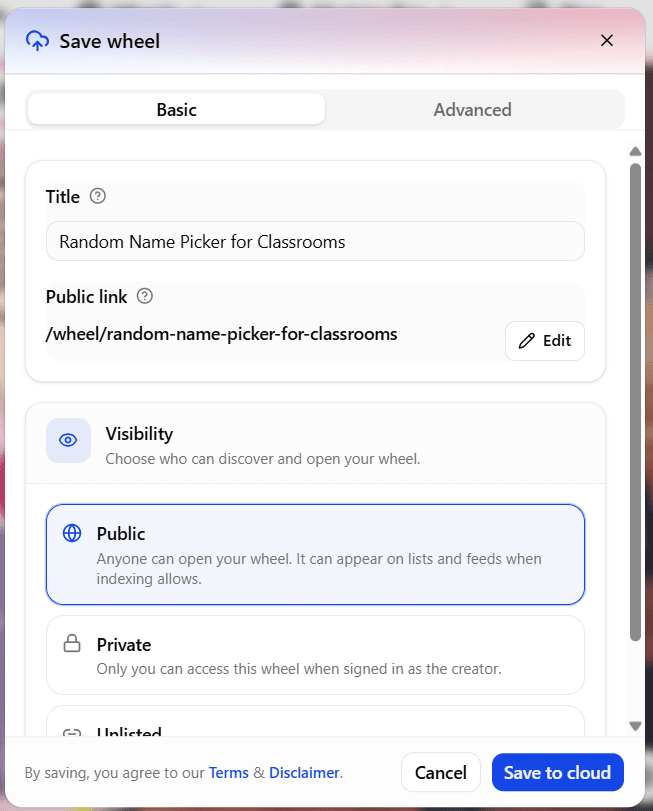
Click Save in the Entries panel header to open the Save wheel dialog. Not signed in? You will still see the settings, with a note to sign in for cloud save.
Basic tab
Title - name your wheel (e.g. "Friday lunch picker")
Public link - edit the slug under
/wheel/your-slugVisibility - Public (discoverable), Private, or Unlisted
Advanced tab
Sharing
Allow copy - let visitors duplicate your wheel
Allow embed - allow iframe embed on other sites
Availability (optional)
Time zone, Go live at, Close at, Show close countdown
Spin logging (optional - giveaways and audits)
Record spin results
Keep logs for: 7 days, 30 days, 90 days, or Keep until deleted
Guest form - collect Name, Phone, or Email with timing: Every spin (kiosk), Once per device (link), or Once per contact (giveaway)
Wheel password - optional protection
Then click Save to cloud (you agree to Terms & Disclaimer).
More save options - JSON export
Click the chevron next to Save for Save as JSON - a backup file you can re-import via Import in the panel footer.
After save - share your wheel
The Wheel saved! dialog gives you:
Public link with copy
View your wheel
Open in fullscreen
Share link / Copy link to share
Start a new wheel
Hosted wheels live at https://spinwheelplus.com/wheel/your-slug - handy for co-teachers, streams, and QR codes in class.
Footer shortcuts
Import - load a JSON wheel file
Template - jump to templates
Customize - open the design drawer
Fair Randomness in One Minute
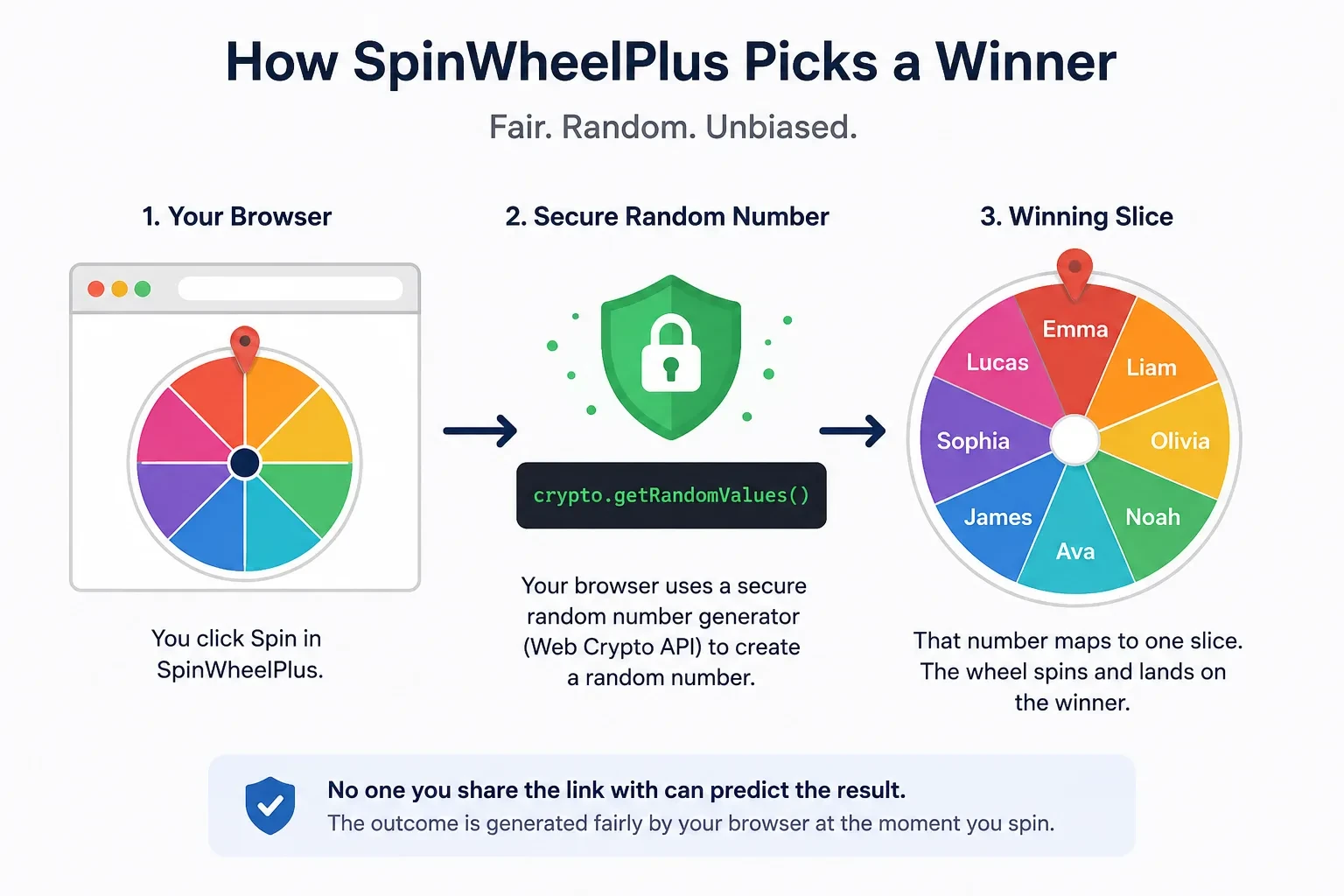
SpinWheelPlus uses the browser's Web Crypto API (crypto.getRandomValues) in supported browsers - the same family of randomness used for security-sensitive tasks - so each spin is unpredictable, not a fixed pattern you can guess. For high-stakes giveaways, explain the process to your audience and consider recording the screen.
What to Explore Next
Templates - start faster next time
Random Name Picker - list draws without a full wheel
Random Number Generator - raffle ticket workflows
Mystery box editor - grid prize reveals for streams and giveaways
Ready to Build Your Own Random Picker?
Open the free SpinWheelPlus editor, add your labels, customize colors and sounds if you like, and spin your first wheel in under a minute.
Whether you need a decision wheel for dinner, a classroom randomizer for participation, a giveaway wheel for a live stream, or a simple random name picker for meetings - you start the same way: entries, optional customize, spin. If you have used a wheel of names elsewhere, the flow here will feel familiar, with room for weights, sounds, and a hosted share link when you save. For raffle wheel workflows with ticket numbers, pair your wheel with the Random Number Generator. When you want prize wheel ideas before building from scratch, browse classroom wheels or giveaway mystery boxes.
Start here: Create your spin wheel free →
Related Tools
Start on the homepage editor, browse spin wheel templates, or use the Random Name Picker when you only need a list draw without wheel animation.